Introduction: The Battle for Your Attention Span
In the digital landscape of 2026, attention is the most valuable currency on Earth. YouTube, as the titan of global video consumption, has mastered the art of the "infinite scroll" and the "seamless transition." At the heart of this engine lies Autoplay a feature designed with one singular goal: to keep your eyes glued to the screen for as long as physiologically possible.
While YouTube's recommendation algorithms have reached near-telepathic levels of accuracy, the cost of Autoplay is often the loss of intentionality. You visit the platform to watch a five-minute tutorial on quantum computing and, two hours later, find yourself deep into a documentary about the history of artisanal salt mining. This guide is your manifesto for reclaiming that lost time. We aren't just toggling a switch; we are re-architecting your relationship with the world's largest video platform.
The Psychology of the "Next Up" Loop
Why is Autoplay so hard to resist? Neuroscientists call it "passive consumption." When one video ends and another begins within seconds, the brain's executive function the part responsible for decision-making is bypassed. The friction of choosing what to watch is removed, and in that vacuum, we default to the path of least resistance.
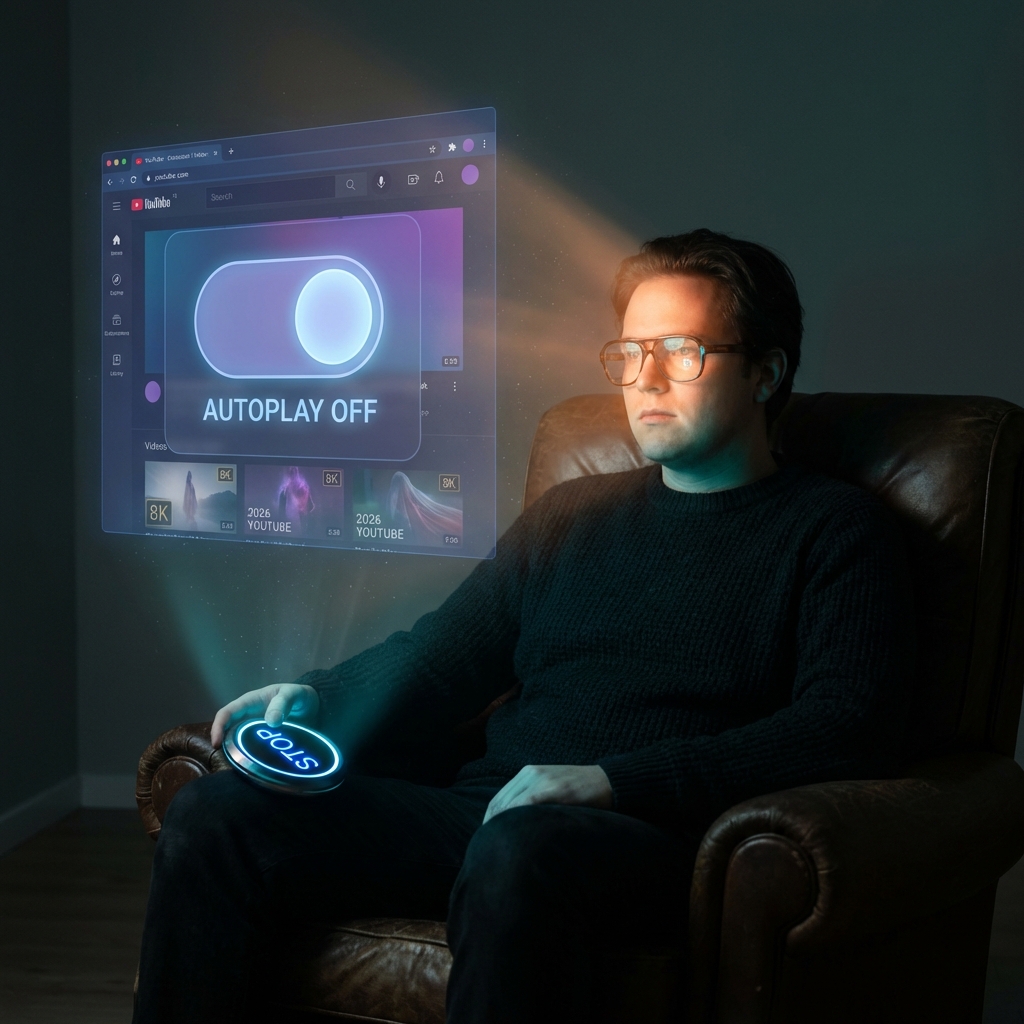
By disabling Autoplay, you reintroduce choice architecture. You force your brain to make a conscious decision: "Do I actually want to watch more, or am I done?"

Section 1: Desktop and Web Browser Mastery (Chrome, Safari, Firefox)
For the power user, the desktop remains the primary theater of operation. Whether you are on macOS, Windows, or a Linux-based workstation, the 2026 web interface has consolidated many settings, but the Autoplay toggle remains its own beast.
The Global Toggle
The fastest way to kill Autoplay is the "On-Player" switch.
- Open any video.
- Hover your mouse over the video player.
- Look for the blue toggle switch at the bottom of the player (near the settings gear).
- Click it until it displays the "Off" icon (typically a grayed-out 'pause' symbol inside the toggle circle).
The Deep Settings Method
Sometimes the player toggle resets after a cache clear. To make it "sticky":
- Click your Profile Picture in the top right.
- Select Settings > Playback and performance.
- Locate the Autoplay section.
- Toggle the master switch for "Autoplay on this browser" to OFF.
Browser Extensions: The Nuclear Option
If YouTube's native settings are failing you (often due to A/B testing variations), use an extension like "Enhancer for YouTube" or "YouTube Control Center." These allow you to force the autoplay=0 parameter on every URL you visit.

Section 2: Mobile App Precision (iOS and Android)
The mobile app is where Autoplay is most intrusive, often manifesting as "Muted Playback in Feeds" before you even click a video.
Disabling In-Player Autoplay
- While a video is playing, look at the very top of the player interface.
- You will see a toggle switch. Slide it to the left so it turns gray.
- Note: In the 2026 update, this setting is now synced across your Google Account by default, but it can still be overridden by "Battery Saver" modes.
Disabling "Autoplay on Home" (The Data Saver)
Nothing kills a data plan faster than videos playing while you scroll.
- Tap your Avatar (bottom right in 2026).
- Tap the Gear Icon (Settings).
- Select General > Playback in feeds.
- Set this to Off.
YouTube Kids: Protecting Young Minds
Autoplay on YouTube Kids is a different beast entirely. It is often enabled to keep children occupied, but for many parents, it leads to "screen-time creep."
- Tap the Lock Icon in the bottom corner of the app.
- Complete the math problem or enter your passcode.
- Select Settings.
- Tap on the specific child's profile.
- Toggle Autoplay to OFF.

Section 3: The Living Room Smart TVs and Gaming Consoles
YouTube on TV (Apple TV, Roku, PlayStation 5/6, Xbox) is notorious for ignoring your mobile preferences. It views itself as a "Lean-back" experience, meaning it really wants to keep playing.
The 10-Foot Interface Method
- Open the YouTube app on your TV.
- Use your remote to navigate to the Left Sidebar.
- Scroll down to the very bottom and select Settings.
- Find the Autoplay menu item.
- Uncheck the box that says "Autoplay next video."
Gaming Console Specifics
On consoles like the PS5 or Xbox Series X/S, the Autoplay toggle is often tied to the "Media" settings of the console itself. If the app setting doesn't stick, ensure your console's "CEC Settings" aren't forcing the app to remain active in the background.

Section 4: Troubleshooting Why Won't It Stay Off?
You've toggled the switch, but the next video still starts. This is the #1 complaint in 2026. Here is why it's happening and how to fix it.
1. The Multi-Account Conflict
If you use multiple Google Accounts (Work/Personal), YouTube stores Autoplay settings per-account. You must disable it for every logged-in profile.
2. Cache and Cookie Corruption
Web browsers occasionally "forget" your settings if the cache is full.
Fix: Clear your YouTube-specific cookies. In Chrome, click the "Lock" icon next to the URL > Cookies and site data > Manage cookies and site data > Delete.
3. The "Incognito" Reset
When you browse in Incognito or Guest mode, YouTube defaults to its "factory settings," which includes Autoplay being ON. There is no permanent fix for this other than toggling it manually each session or using a browser-level ad-blocker that injects a "stop autoplay" script.
4. System-Level "Battery Saver"
In 2026, many Android and iOS devices have a "Smart Power" feature. Sometimes, when these modes are deactivated, the OS refreshes all app background states, which can inadvertently reset YouTube's preferences.

Conclusion: Living Intentionally in an Algorithmic World
Disabling Autoplay is more than a technical preference; it is a boundary. By taking the five minutes required to follow the steps in this guide, you have saved yourself hundreds of hours of passive consumption over the next year.
The YouTube of 2026 is a tool of infinite potential a library of Alexandria in video form. But like any library, it is most useful when you are the one choosing the books. You have reclaimed your feed. Now, go out and use that extra time to create something of your own.

💡 Expert Tip: If you find yourself still struggling with YouTube addiction even after disabling Autoplay, consider using the "Remind me to take a break" feature located in Settings > General. In 2026, you can set this to trigger after just 15 minutes of viewing, providing a much-needed "digital nudge" to step away.